Research Notes
Use Research Notes to keep ticker-specific and theme-specific findings in one place.
- Ticker note examples:
AAPL.md,MSFT.md - Theme note example:
ai-chip-cycle.md
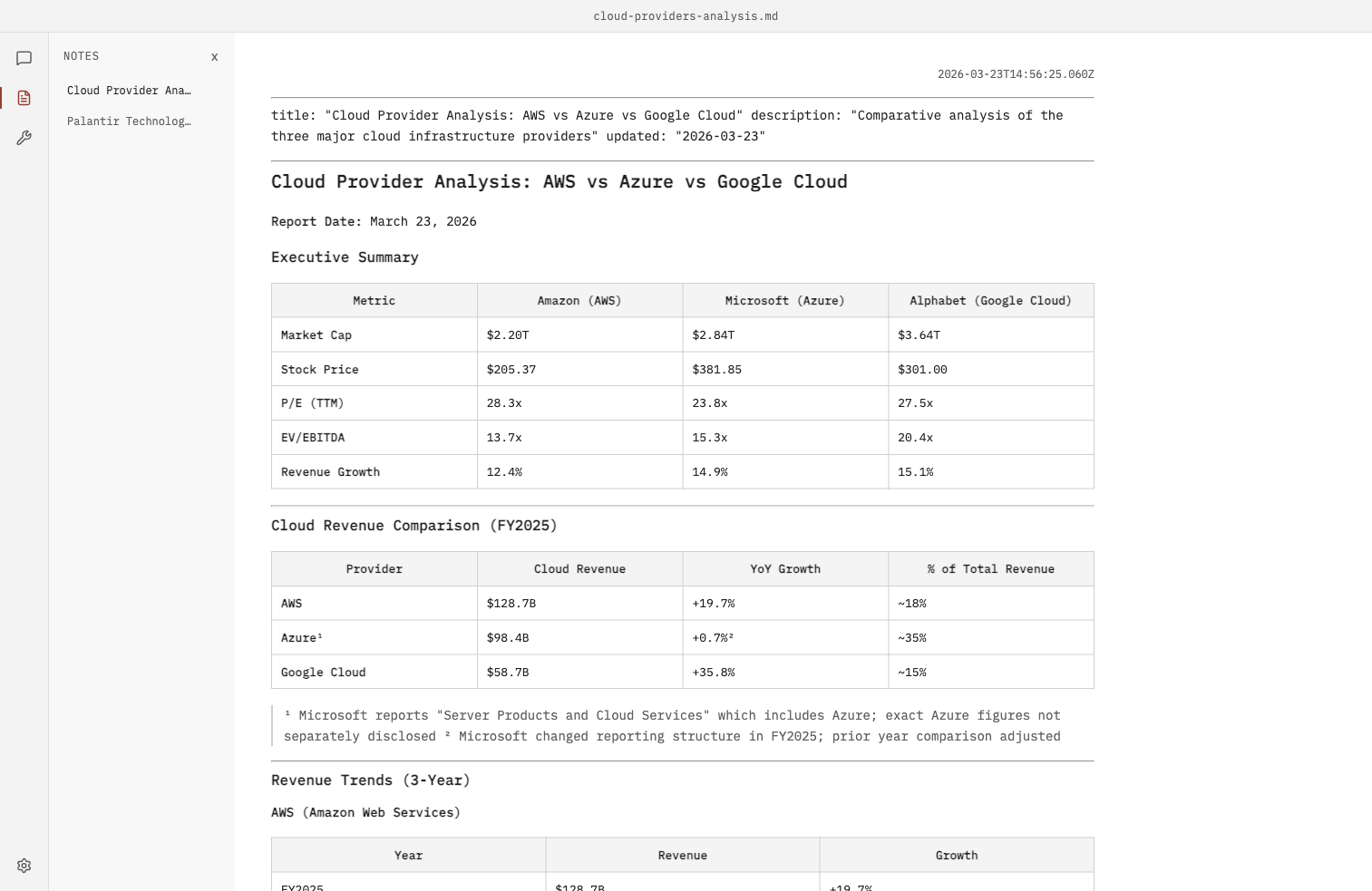
Typical workflow
- Ask Northfox a question.
- Refine with follow-up prompts.
- Ask Northfox to save your conclusion to notes.
- Reopen the note later from the
Notessection.
Reference markdown files from chat with @
In the composer, type @ to open markdown reference suggestions.
- Notes appear as
@<fileName>.md(for example@ford_analysis.md). - Memory appears as
@memory.md. - Skill instructions appear as
@skill/<skill-id>.md.
When you send a prompt with one of these references, Northfox uses that content in the conversation so follow-up edits are more accurate.
How note files are named
- If you pass a ticker, the note is saved as
<TICKER>.md. - If you do not pass a ticker, use
noteNameand the file is<noteName>.md.
Note-writing behavior
- Missing files are created automatically.
- Existing files are appended by default.
mode: replaceoverwrites the file.- Notes are stored as markdown.
- Frontmatter always includes a timestamp.
- Frontmatter also stores the chat id (
chatId) that generated the latest note update. - The app shows that timestamp at the top-right of the note view.
- Notes end with a
Generated on <date>link that opens the originating chat session. - Reference lists are kept in chat responses instead of note-bottom sections.
Chat history
Northfox also saves chat sessions so you can resume analysis later.
Find in active note or chat
Use Ctrl+F in the desktop app to open in-document search for the active note or active chat.
- Search updates as you type.
- Result count is shown as
current / total. - Use
↑and↓to jump between matches. - The input
xclears the current query. - The right-side
xcloses the search box.